
Please note the following changes to the way you access Workspaces:
Campus Apartments is requiring all Amazon Workspaces users to add MFA to their login. It’s a simple check that you are actually who you say you are when you log in to Workspaces. This is required when installing and using Amazon Workspaces. Also (and this is a good one) when you log into an AWS Workspace, you can type 'push' in the MFA field and it does the push. If you already have an Okta MFA credential enrolled (either Google Authenticator or Okta Verify) you simply use that code. No further action is required on your part to log on.
If you do not have an Okta MFA credential enrolled:
- Download Okta Verify app from iTunes or from Google play to your phone. This is a very lightweight, non-invasive app that will sync with your account and generate one-time use codes for MFA logon. Please note this has no effect on your personal Google account.1. Logon to Okta (https://campusapts.okta.com)
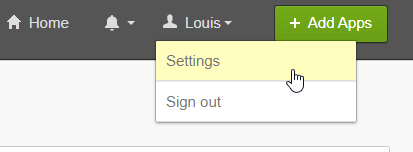
- In the web interface, click your name, and then 'Settings' in the dark gray bar at the top of the screen
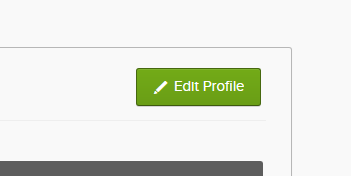
- Click the green 'Edit Profile' button. You may have to re-enter your password.
- Scroll down to 'Extra Verification'
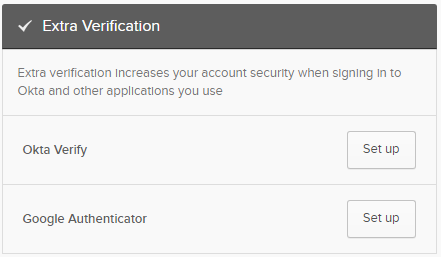
- Click 'Set up' against the app you want to use (Okta Verify or Google Authenticator). We recommend Okta Verify, but either will work.
-
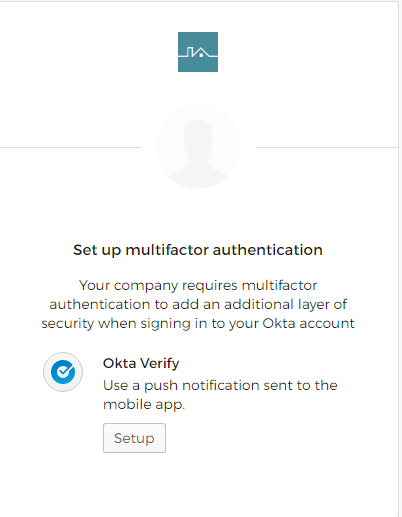
Once the new screen fully loads, click the Setup button
-
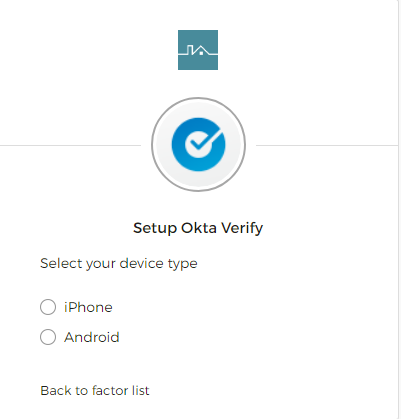
Select which type of device you are using
-
Click Next

-
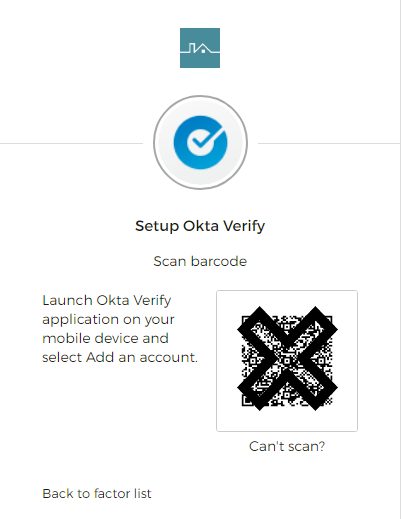
A barcode will now appear on your screen. The last steps will need to be completed on the device you are enrolling.
-
Open the Okta Verify app on your device and tap Add Account (iOS) or the plus sign (+) (Android).
-
Scan the QR code on your device. When you point the camera at the QR code, the camera detects and reads the QR code automatically and your device is enrolled in Okta Verify. The web browser on your computer returns to Set up multifactor authentication.
Comments
0 comments
Article is closed for comments.