
I have attached some pictures to try to guide you through how to setup a Zoom conference, they are labeled for the following sections.
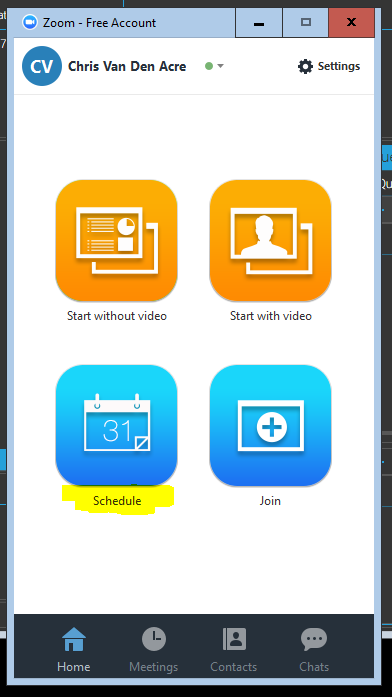
Zoom Instruction Picture 1:
1. Click Schedule
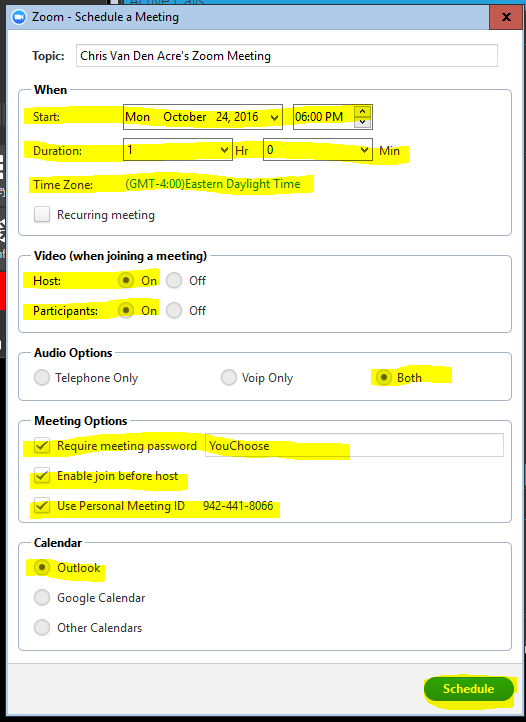
Zoom Instruction Picture 2:
1. When - Set a Date for when the meeting will start.
2. When - Set a duration of the meeting (45 minutes unless you upgrade to the Pro version).
3. Video (when joining a meeting) - Make sure Video is on for the host and participants if you choose to do a video meeting. Select off if it will be voice only.
4. Audio Options - Make sure to select both.
5. Meeting Options - Choose to set a password if you would like the participants to have to put a password in when joining the conference. Enable join before host if you choose to have them join before you get to join. You may choose to use a personal meeting ID which I don't think is needed when you use a password.
6. Calendar - Make sure you select Outlook.
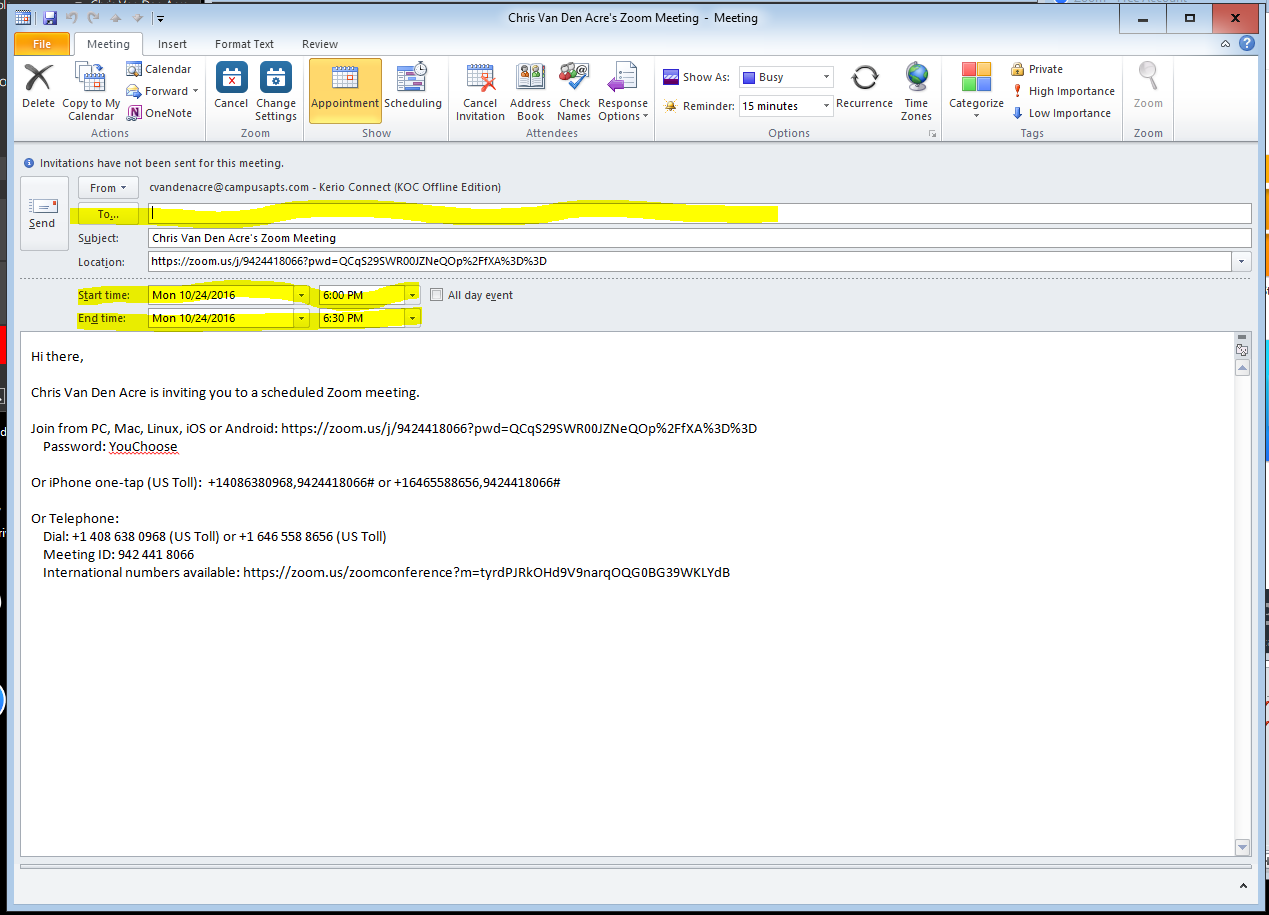
Zoom Instruction Picture 3:
1. To.... - You can add whoever's email you wish to be a participant in the conference call.
2. Start Time - Select a date and time, make sure it matches the date and time you entered in the Zoom Setup Screen.
3. End time - Make sure it's 45 minutes after the start time (unless you upgraded to the Pro version).
Comments
0 comments
Article is closed for comments.